Warrant Register List
Navigate:  Tax > Delinquents > Warrants > Warrant Register List
Description
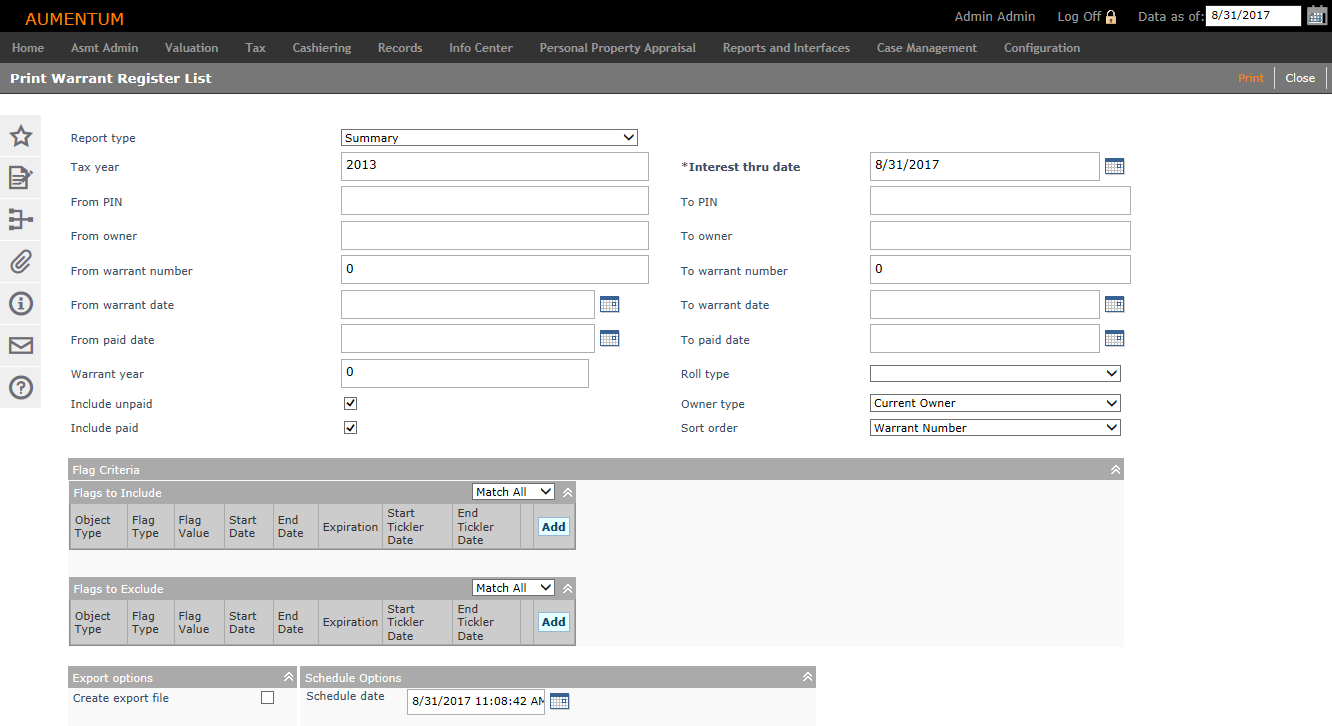
Print a listing of warrants. Warrants are set up using the Delinquent > Warrants > Warrant Setup task.
Steps
-
On the Print Warrant Register List screen, select the Report type. You can choose to print a Summary report or a Detail report.
-
Select the options for your report. You must at least enter a Tax year or a Warrant year to print this report.
-
Select flags in the Flags to Include grid to determine which revenue objects are included in the search results. NOTE: Flag information does not print on the Summary Report.
-
Select flags in the Flags to Exclude grid to determine which revenue objects are excluded from the search results.
-
Follow the same steps as for the Flags to Include grid to add flags until the list is complete.
-
Select match all or match any. This specifies whether or not an object has to have all the flags or any of the flags attached to it to be excluded from the search.
-
If all, then the search will exclude from the results bills that match all flags in the grid.
-
If any, then the search will exclude any bills that have any one of the flags in the grid.
EXAMPLE
-
-
Select the checkbox if you want to Create an export file.
-
Enter the Schedule date and time when you want to start the batch process.
-
Click Print. You advance to the Monitor Batch Processes screen.
|
PIN |
Flags Applied to PIN |
Flags to Exclude Grid Settings |
Will PIN be returned in the search? |
|
101 |
Bankruptcy - Chapter 7 |
Match All: |
No, it meets the criteria for exclusion |
|
102 |
Bankruptcy - Chapter 7 |
Match All: |
Yes, does not meet criteria for exclusion |
|
103 |
Bankruptcy - Chapter 7 |
Match Any: |
No, it meets the criteria for exclusion |
|
104 |
none |
Match Any: |
Yes, does not meet criteria for exclusion |
Report Samples
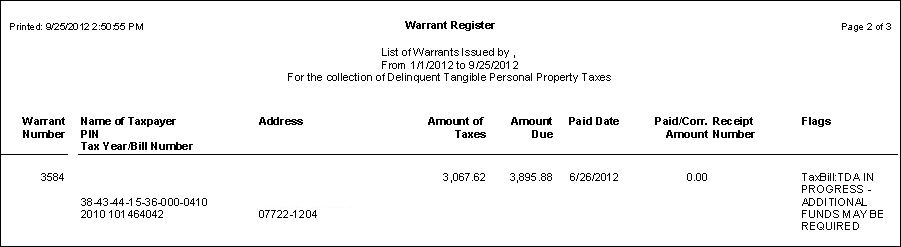
Warrant Register List Detail Report
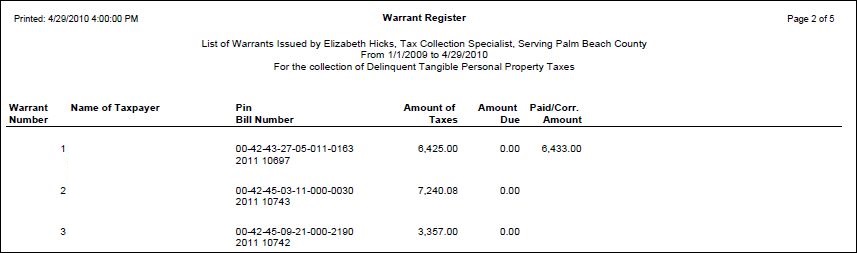
Warrant Register List Summary Report
Common Actions
Click View Batch Processes to check the status of the report on the Monitor Batch Processes screen.
Tips
The contact information that prints in the header of the detail and summary report is set up in Configuration > Localization > Office Contact Information for the 'Delq. reports office contact'.