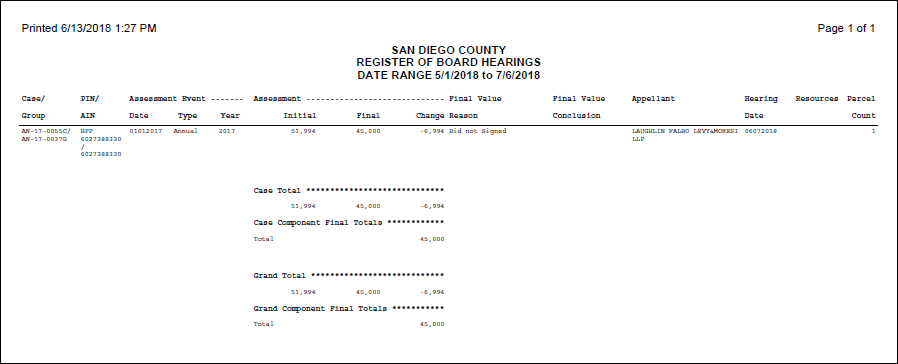
Hearing Register Report
Navigate:  Case
Management > Reports > Hearing Register
Case
Management > Reports > Hearing Register
Description
The Hearing Register Report provides a list of the results or actions taken for hearings held during the entered work week or date range, by case number. It also includes value impact results for cases that match the range specified.
NOTE: Role security can be applied to specific fields for this task via Configuration > Security and User Maintenance > Roles. Select a row and edit as necessary.
Steps
-
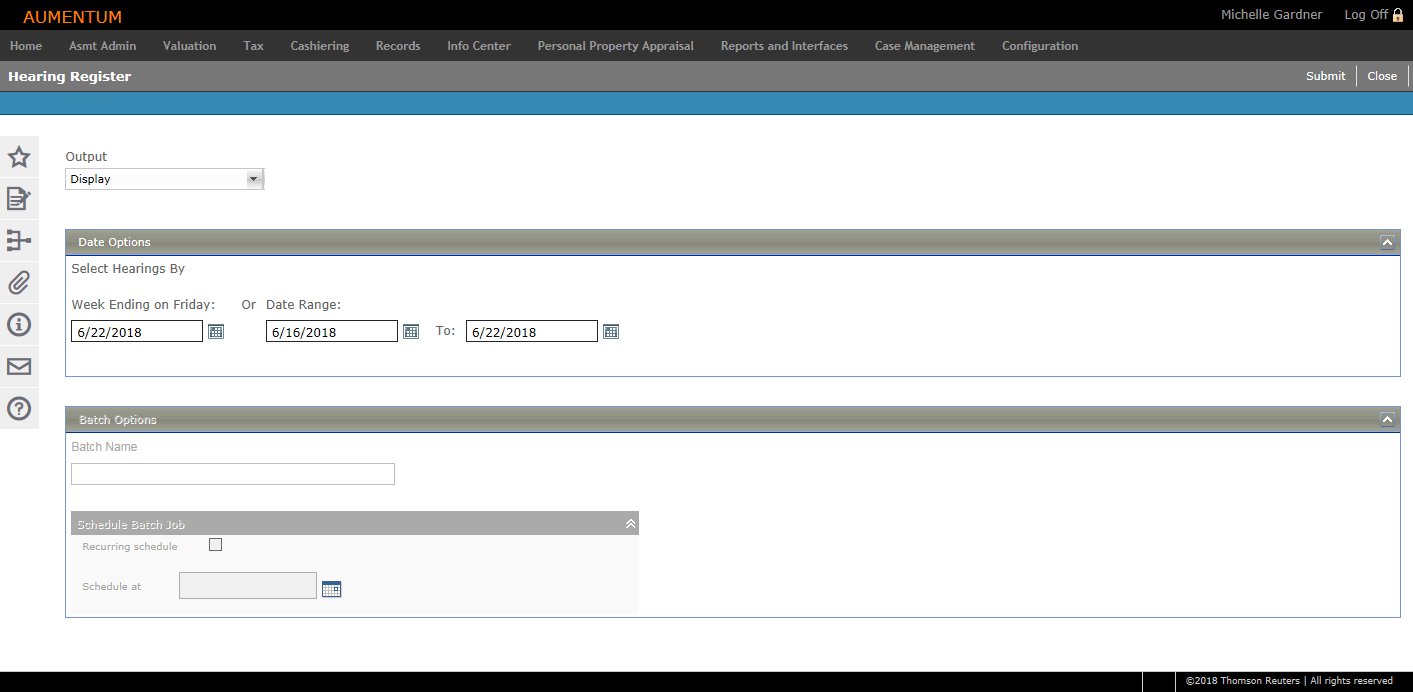
On the Hearing Register screen, make a selection from the Output drop-down list.
- In the Date Options panel, enter or select a date for the week ending on Friday, or specify a date range. The default is the current week's Friday date.
- Click Submit.
-
If you selected Display from the Output drop-down list, click on an item in the Hearing Register panel to open the Case Detail screen.
- Click Close to return to this screen.
-
In the Schedule Batch Job panel, enter or select the date and time you want to schedule the job.
OR
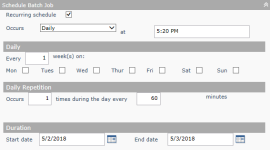
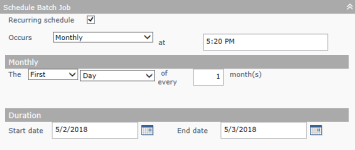
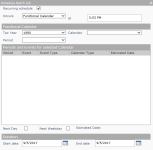
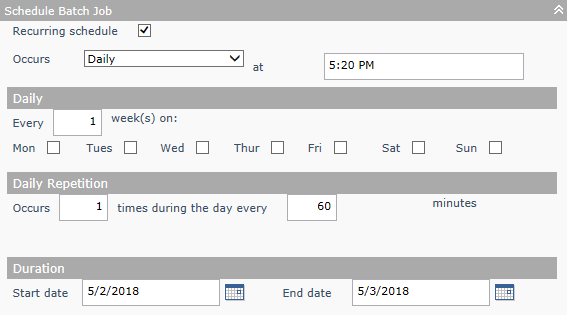
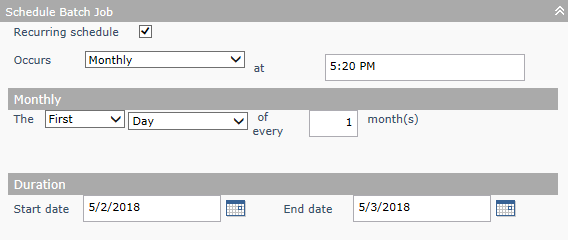
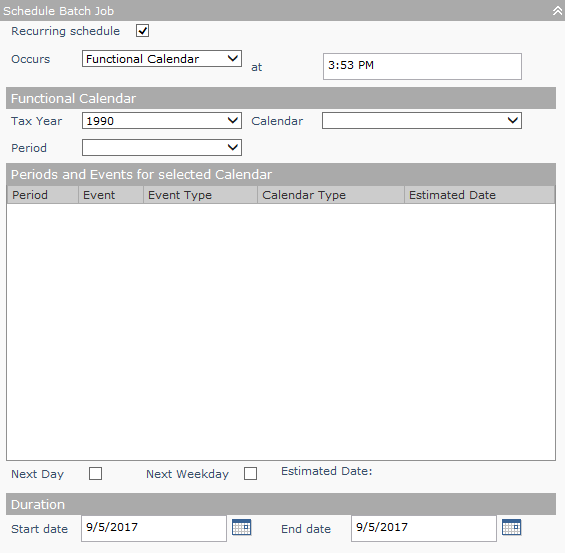
Select the Recurring schedule checkbox and make a selection from the Occurs drop-down list to define a recurring schedule.
Daily
Monthly
Functional Calendar
-
Click Submit.
-
On the Monitor Batch Processes screen, click on the report in the grid to open the View Batch Process Details screen.
-
Click List to return to the Monitor Batch Processes screen.
-
Click Close to end the task.
OR
If you selected Print from the Output drop-down list, the report opens automatically.
OR
If you selected Batch from the Output drop-down list, enter a name in the Batch Options panel.
Report Samples